Search analytics
What analytics shows
Every search your storefront makes with a saved search profile is logged: the query, how many products it found, how long it took, which filter fields it used and which ranking rules fired. Analytics adds those records up per index, so you can see what shoppers look for and where search lets them down.
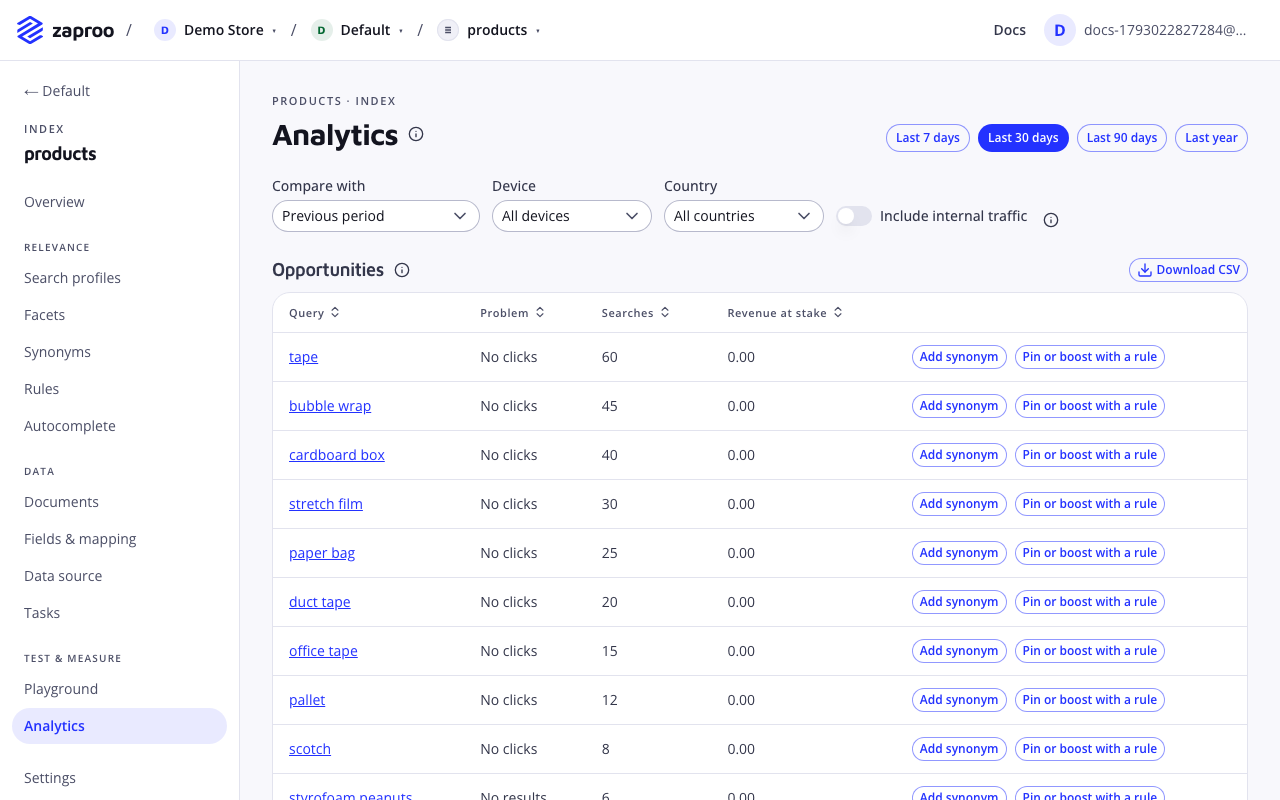
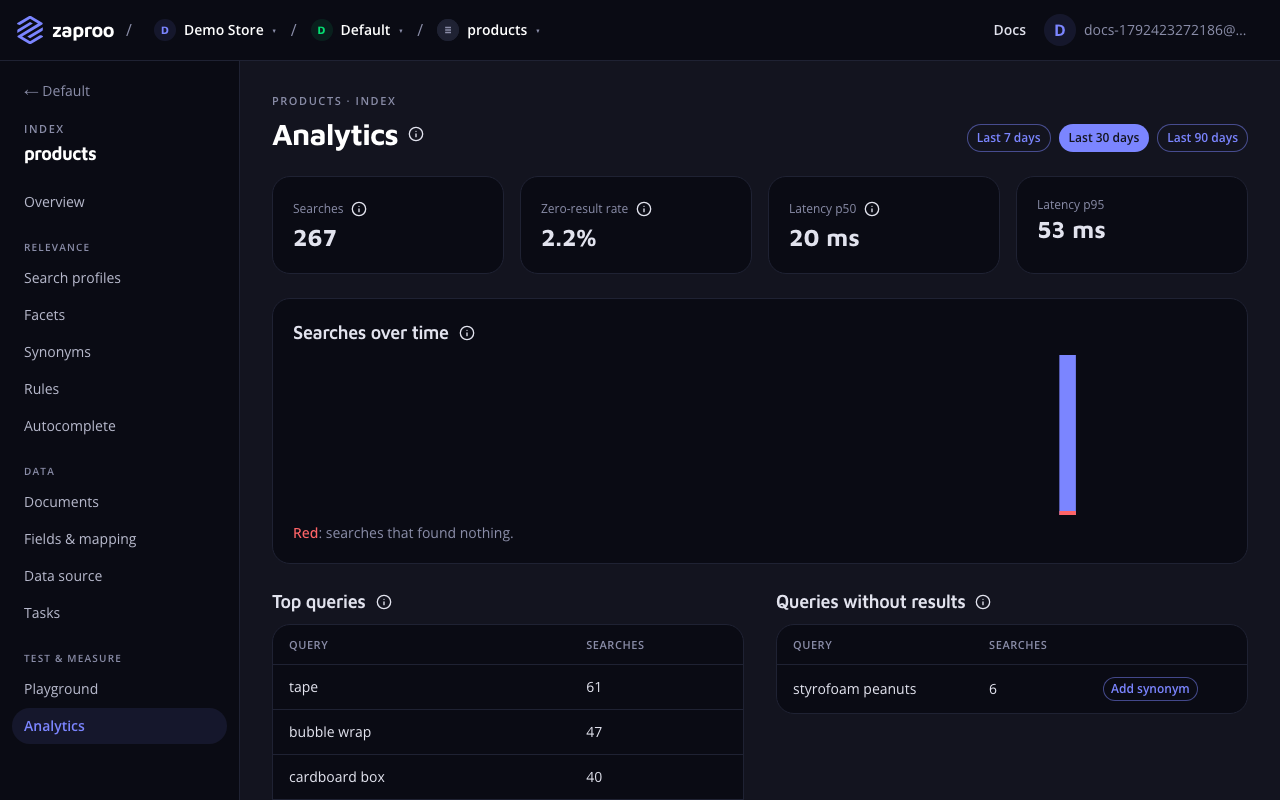 Analytics for the last 30 days
In the cabinet, open an index and then Analytics. Pick Last 7 days, Last 30 days or Last 90 days at the top. The page shows four numbers, a timeline and two query lists.
GET/v1/projects/:projectId/indices/:indexId/analyticsProject member or any secret keycurl "https://api.zaproo-search.com/v1/projects/$PROJECT_ID/indices/$INDEX_ID/analytics?from=2026-10-01T00:00:00Z&to=2026-10-15T00:00:00Z" \
-H "Authorization: Bearer $ZS_KEY"
Show me last week's search analytics for the products index and list the queries that found nothing.
The agent calls get_search_analytics, which takes the same from and to.
from and to are ISO timestamps. Leave both out for the last 30 days up to now; leave out from for the 30 days before to. from must be before to, and the window may span at most 90 days, otherwise the API answers 400 VALIDATION_FAILED.
Metrics
Searches
totalSearches: every logged search in the window, including the ones with an empty query (a shopper browsing a category without typing).
Zero-result rate
zeroResultRate: the share of those searches that found nothing, from 0 to 1. The cabinet shows it as a percentage. It is the first number to watch after a change to a profile, synonyms or rules.
Latency
latency.p50 and latency.p95: the time the search took inside Zaproo, in milliseconds, for the median search and for the slowest 5 percent. Network time to your server is not included. Both are null when the window has no searches.
Timeline
timeline holds one bucket per hour when the window is two days or shorter, and one per day when it is longer. Every bucket has ts (its start), searches and zeroResults, and buckets without searches are included with zeros, so the series has no gaps. In the cabinet, Searches over time draws the zero-result part of each bar in red.
Top queries
topQueries lists the 50 most searched queries, most searched first, with how often each was searched. Queries are grouped after lowercasing, trimming and collapsing spaces, so "Samsung TV" and "samsung tv" count as one. Empty queries count as searches but never appear in the list.
Queries without results
zeroResultQueries lists the 50 most searched queries that found nothing, in the same form. This is the list to work through: each line is a shopper who wanted something and left with nothing.
Fixing zero results
Look at each query and decide why it found nothing.
| Why | What to do |
|---|---|
| Shoppers use another word for a product you have ("telly", "sneakers" for "trainers") | Add a synonym. |
| A misspelling the typo tolerance does not catch | Add a one-way synonym from the misspelling to the right word. |
| The word is in a field the profile does not search (a SKU, a color) | Add the field to the profile's query fields, with a modest weight. |
| You want to show specific products for that query | Add a ranking rule that pins those products. |
| You do not sell it | Nothing to fix. Consider a custom autocomplete suggestion that steers shoppers to what you do sell. |
Add a synonym from the list
Next to each query in Queries without results, Add synonym opens a form with the query already filled in as the terms. Type what it means under Means (target) and save: the cabinet creates a one-way synonym, so the query also searches the target, and the next search uses it. No reindex is needed. Only project admins see the button.
Rules and profile changes
A ranking rule that pins products shows them for that query even when nothing else matches it. A profile change, such as an extra query field, applies to every query, so check it in the profile editor's preview first.
tune_relevance walks an agent through this whole loop: it reads the zero-result queries, inspects the mapping and profiles, proposes synonyms and profile changes, previews them, and applies them after you agree. See Resources and prompts.What gets logged
- Searches with a saved profile, on the public route
POST /v1/search/:profileKeyand on the secret route by index id. Searches from the cabinet's playground use a saved profile, so they count too. - Not logged: searches with an inline profile (the profile editor's preview,
preview_profileandtest_ruleover MCP), and autocomplete requests. - Filter values are never logged, only the names of the fields filtered on. A
sessionIdsent with the search is stored as a salted hash. - Records reach analytics within a few seconds of the search.
Retention
The search log keeps 90 days. Older records are deleted, so a window can never reach further back than that, and the cabinet's longest range is 90 days. Autocomplete reads from the same log, which is why its lookback is also capped at 90 days.
Common mistakes
- Reading the zero-result rate right after launch. A few hundred searches make a noisy rate. Judge a change over a week of traffic.
- Fixing the rate, not the queries. One popular zero-result query matters more than twenty that were searched once. Work down the list from the top.
- Counting test traffic. Your own searches in the playground are logged. Keep tests to a separate index, or expect them in the numbers.