Search and relevance

Search profiles

Every setting of a search profile, what it does to results, and the mistakes to avoid.

What a profile is

A search profile is a saved recipe for one search box: which fields a query looks in and how much each counts, how forgiving it is about typos, which facets and sort orders it offers, which filters always apply and what each hit returns. An index can hold up to 50 profiles, for example one for the storefront search page and one for a B2B catalog.

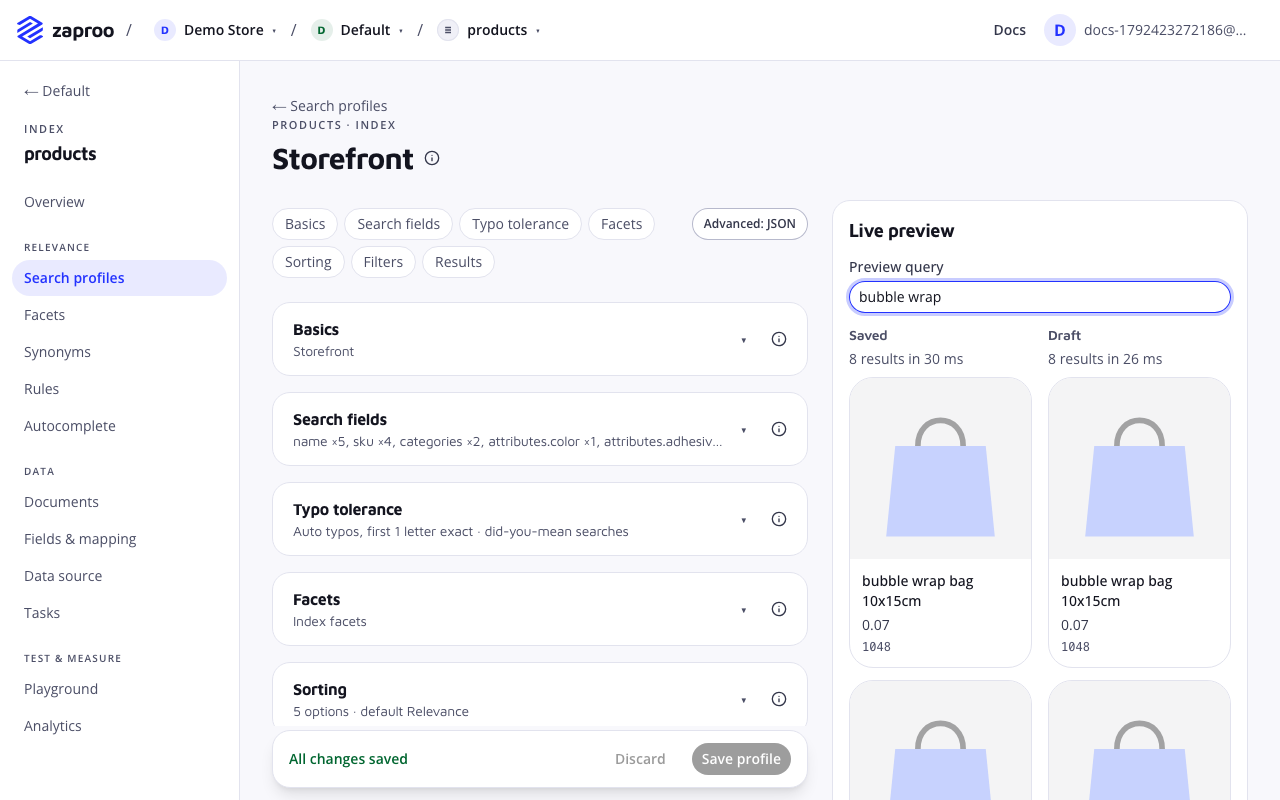
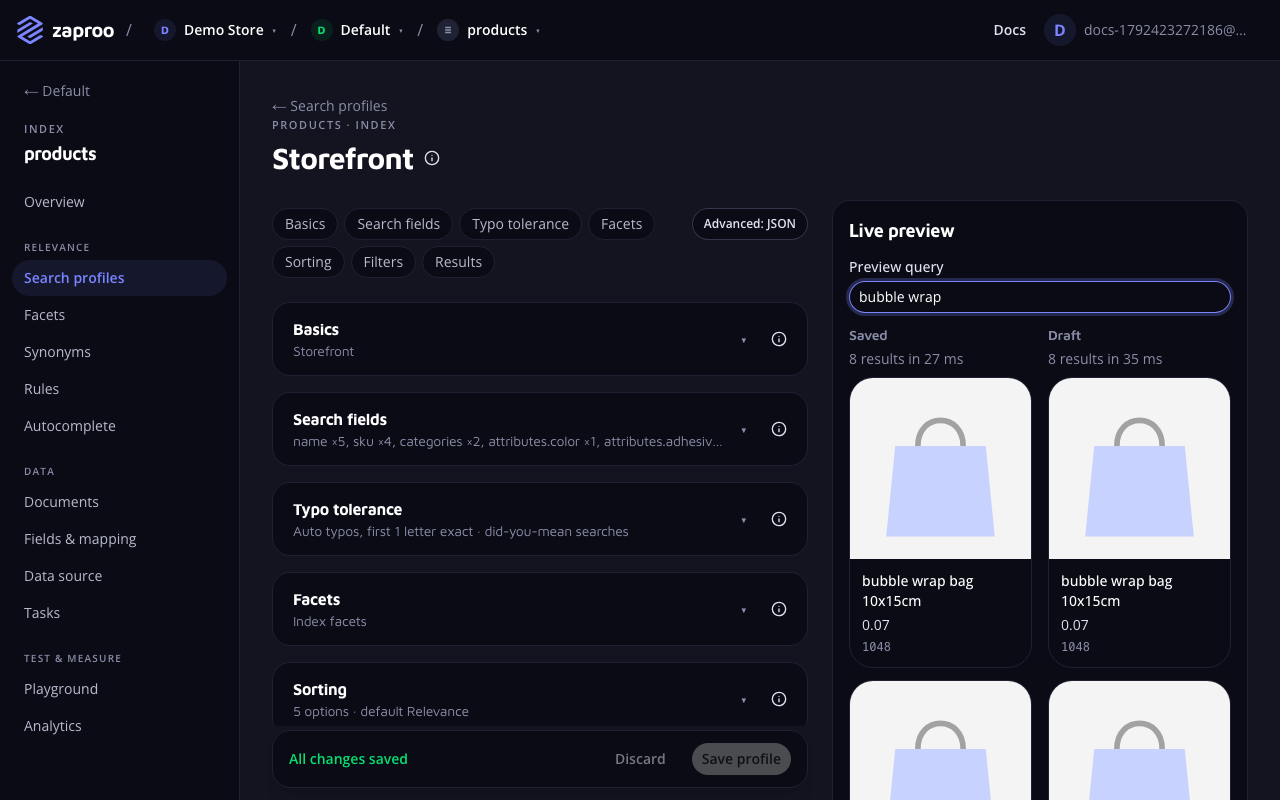
The profile editor for Storefront with collapsible blocks for basics, search fields, typo tolerance, facets and sorting, next to a live preview comparing saved and draft results for bubble wrapThe profile editor with a live preview of the saved and the draft settings

Each profile has a profileKey, 16 URL-safe characters that never change. The storefront calls POST /v1/search/<profileKey> and sends only the query, filters, sort and page; everything else comes from the profile. A saved change applies to the very next search.

In the cabinet, open an index and then Search profiles. The editor is split into the blocks below and shows a live preview of the draft next to the saved profile. The same profile is plain JSON in the API and in the editor's JSON view.

GET/v1/projects/:projectId/indices/:indexId/profilesProject member or any secret keyPOST/v1/projects/:projectId/indices/:indexId/profilesProject admin or a full-access secret keyPUT/v1/projects/:projectId/indices/:indexId/profiles/:profileIdProject admin or a full-access secret keyDELETE/v1/projects/:projectId/indices/:indexId/profiles/:profileIdProject admin or a full-access secret key

PUT replaces the whole profile, so send every setting you want to keep. A save checks the profile against the index mapping: a field must exist and carry the flag its use needs (searchable, facetable, filterable, sortable or returnable), or the API answers 400 PROFILE_INVALID with one issue per field.

Basics

Name

nameType stringValues 1 to 100 characters

What it does

The name you and your team know the profile by. It shows in the cabinet; shoppers never see it.

Best practices and common mistakes

  • Name a profile after where it is used ("Storefront search", "Mobile app"), not after its settings. Settings change, the placement does not.
  • Names are unique within an index. Saving a second profile with the same name answers 409 PROFILE_NAME_TAKEN.

Search fields

Fields and weights

queryFieldsType field → weightValues weights above 0, up to 100; at least one field

What it does

The fields a query looks in, each with a weight. A match in a field with weight 3 counts three times as much as a match in a field with weight 1. Only searchable fields can be listed.

Best practices and common mistakes

  • Give the product title the highest weight and keep long descriptions low. A word in a description says much less about a product than the same word in its title.
  • Add brand and SKU fields with a modest weight so "samsung" or a part number finds the right products.
  • A field left out here is not searched at all, even when it is searchable in the mapping.

Related

Match

matchType all | anyDefault all

What it does

all returns a product only when every word of the query matches; any is happy with one word. all gives precise results for short queries; any returns more products and ranks those that match more words higher.

Best practices and common mistakes

  • With all, every word has to be found in the same field. "samsung oled" matches a title that holds both words, but not a product whose brand is Samsung and whose title only says OLED. Put the brand into the title field, or use any if your catalog splits words across fields.
  • Watch the zero-result rate in Analytics after switching to all. Long natural-language queries are the first to stop matching.

Phrase boost

phraseBoostType numberDefault 2Values 0 to 100; 0 turns it off

What it does

An extra boost for products where the query's words appear next to each other, in order. It only lifts products that already match; it never adds new ones.

Best practices and common mistakes

  • The default of 2 helps queries like "coffee table" rank tables above coffee. Raise it when multi-word product names matter, set it to 0 when word order means nothing in your catalog.

Typo tolerance

Typos allowed per word

typo.fuzzinessType AUTO | 0 | 1 | 2Default AUTO

What it does

How many letters may differ between a query word and a word in a product. AUTO allows none for words of one or two letters, one typo for words of three to five letters and two for longer words. 0 turns typo tolerance off.

Best practices and common mistakes

  • Keep AUTO for most catalogs. A fixed 2 lets short words match far too much: two changed letters turn a three-letter word into almost any other.
  • Use 0 for catalogs searched mostly by codes, where a single changed character is a different product.

Related

Exact letters at the start

typo.prefixLengthType numberDefault 1Values 0 to 10

What it does

How many letters at the start of a word must be typed exactly before typos are allowed. With 1, "lamp" can match "lump" but not "damp".

Best practices and common mistakes

  • People rarely mistype the first letter, so 1 cuts false matches at almost no cost. 2 or 3 makes search faster on very large catalogs and stricter still.
  • 0 lets the first letter differ too, which mostly adds noise.

Did you mean

didYouMean.enabledType booleanDefault true

What it does

When a search finds nothing, the engine looks for a corrected spelling of the query among the words in your products. The response returns it as correctedQuery, so the storefront can show "Did you mean …?".

Best practices and common mistakes

  • It only runs when a search has zero results, so it costs nothing on searches that already find products.

Related

Search the suggestion

didYouMean.replaceOnNoResultsType booleanDefault true

What it does

With this on, a search that finds nothing is run once more with the corrected query, and the response returns those results with correctedQuery set. Off, the response stays empty and only carries the suggestion.

Best practices and common mistakes

  • When it is on, tell the shopper what happened: "Showing results for lamp". Results for a different word without a word of explanation look like a bug.
  • The corrected search is never corrected a second time, and ranking rules match the corrected query.

Facets

Profile facets

facetsType list of facetsDefault the index facetsValues up to 50

What it does

The filter panels next to the results, in order. Leave the setting out and the profile shows the index facets, which you manage once on the index's Facets page. Set it, even to an empty list, and this profile shows its own facets instead.

A facet has a type and a facetable field, and an optional label:

  • terms: the field's values with product counts; limit 1 to 500 (default 20), order count or key.
  • range: buckets you define with from and to; from is included and to is not. Up to 50 buckets, numeric fields only.
  • stats: the lowest and highest value in the results, for a price slider. Numeric fields only.
  • hierarchy: a category tree that shows the children of the deepest selected category; limit 1 to 500 (default 50). Hierarchy fields only.

Best practices and common mistakes

  • Use the index facets unless a profile really needs different ones. One list is easier to keep right than several copies.
  • Facet counts stay disjunctive: ticking one brand keeps the counts of the other brands, so the shopper can add a second one.
  • A facet's field may be filtered by requests automatically; it does not need to be listed under extra filterable fields.

Related

Hide empty facets

hideEmptyFacetsType booleanDefault true

What it does

Leaves out facets with nothing to pick for the current search. A facet the request already filters on stays even when it is empty, so the shopper can still see and clear the selection.

Best practices and common mistakes

  • Turn it off only when your storefront needs every facet in a fixed position, for example in a layout with a slot per facet.

Sorting

Sort options

sortOptionsType list of sortsDefault ["_relevance"]Values 1 to 50 options

What it does

The sort orders a shopper can pick. Each option is up to 10 clauses joined by commas and applied in order: _relevance (best match first) or field:asc / field:desc on a sortable field, for example price:asc or inStock:desc,_relevance. A field may appear once per option. A request asking for a sort that is not in this list answers 400 SORT_NOT_ALLOWED.

Best practices and common mistakes

  • Keep _relevance in the list. Without it, a shopper who picked "price, low to high" cannot get back to best matches.
  • Products that tie on a field sort (equal prices) fall back to the best match first, so you do not need to add _relevance at the end yourself.

Related

Default sort

defaultSortType sortDefault _relevance

What it does

The sort used when a request does not ask for one. It must be one of the sort options, or the save fails.

Best practices and common mistakes

  • Leave the search page on _relevance. A category page with an empty query is a good place for a field sort such as newest first.

Always show first

pinnedSortType list of sort clausesDefault []Values up to 10 clauses

What it does

Sort clauses that lead every search, before the default or the requested sort, such as inStock:desc to show products in stock first. A clause of the chosen sort on the same field is dropped, since it would change nothing after the pinned one.

Best practices and common mistakes

  • In-stock first is the classic use. Keep the list short: each clause pushes relevance further down.
  • Ranking rules that pin products only take effect when, after these clauses, results are ordered by relevance.

Filters

Always-on filters

filtersType field → filterDefault {}

What it does

Filters every search gets. A product shows up only when it matches all of them, and the storefront cannot lift them. A filter is a value, a list of values (any of them), a range {"gte": 10, "lt": 50}, {"exists": true} or category nodes {"terms": ["TV>OLED"]}, on a filterable or facetable field.

Best practices and common mistakes

  • Use one to give a profile its own slice of the index, such as {"inStock": true} for a shop that never shows sold-out products.
  • These filters narrow facet counts too, so facets never offer values that cannot be shown.

Related

Exclusions

exclusionFiltersType field → filterDefault {}

What it does

Products that match any of these never show up, whatever the request asks for. They take the same filter forms as always-on filters.

Best practices and common mistakes

  • Good for hiding a brand or a category from one storefront without deleting it from the index. To hide single products for chosen searches, a ranking rule is the better tool.

Extra filterable fields

filterFieldsType list of fieldsDefault []Values up to 100

What it does

Fields a request may filter on besides the facet fields. A request filtering on any other field answers 400 FILTER_NOT_ALLOWED, which keeps storefront requests from filtering on fields you did not mean to expose.

Best practices and common mistakes

  • Add a field here when the storefront filters without showing a facet, such as a hidden currency or a visibility flag.

Results

Fields in each hit

fieldsType list of fieldsDefault every returnable fieldValues up to 200

What it does

The fields each hit returns. Leave it out and a hit carries every returnable field of the mapping.

Best practices and common mistakes

  • List only what the result card shows (title, price, image, URL). Smaller responses render faster, especially on mobile.

Results per page

perPage.defaultType numberDefault 24Values 1 to 1000

What it does

How many hits a page holds when the request does not say. It cannot be higher than the most a request may ask for.

Best practices and common mistakes

  • Pick a number that fills whole rows of your grid: 24 works for 2, 3, 4 and 6 columns.

Most a request may ask for

perPage.maxType numberDefault 100Values 1 to 1000

What it does

The largest perPage a request may send; above it the API answers 400 PER_PAGE_TOO_LARGE. Independently, page × perPage cannot go past 10,000 results.

Best practices and common mistakes

  • Keep it low on public storefronts. A high limit lets anyone pull large result pages with a public key.